 Studio RabbitOpen editor ↗
Use Studio Rabbit’s Image Enhancer when you want clearer-looking detail rather than a different scene. The enhancement prompt aims to preserve the subject, colours and original composition while improving texture and detail.
See a photo enhancement example
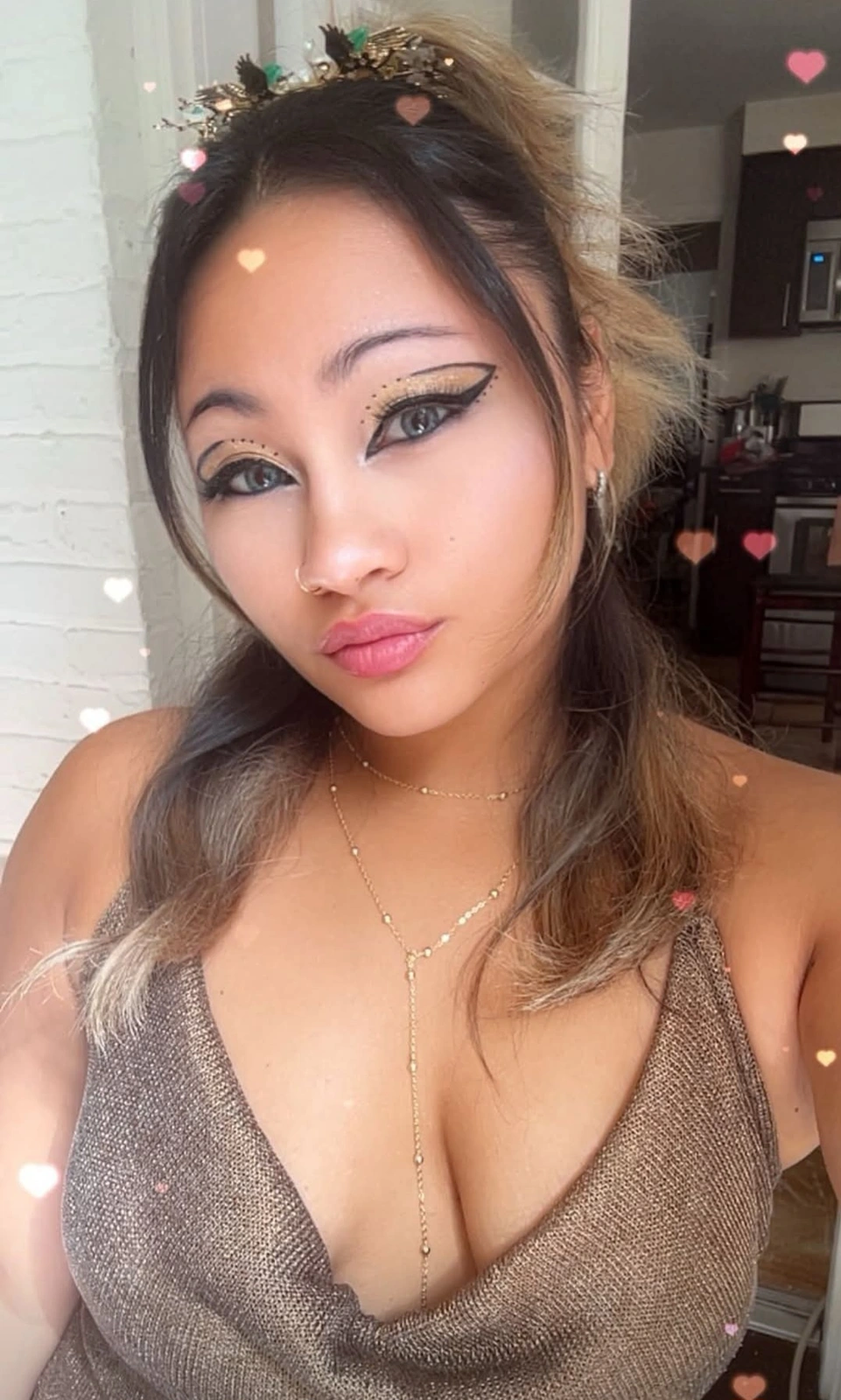
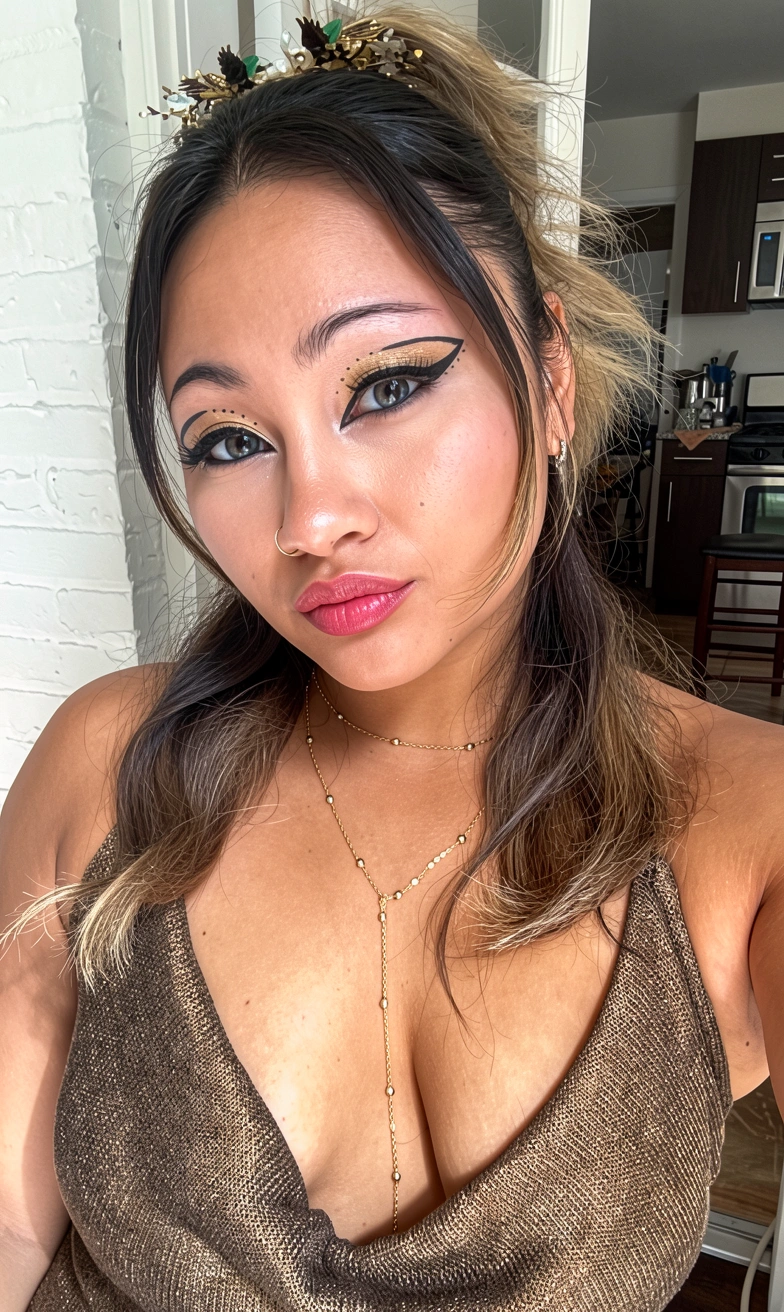
An existing studio demonstration. Compare fine facial details, hair and texture. Results vary with the source image and settings; generated details are not evidence of what the original camera captured.
How enhancement works
- Upload the clearest version of your image that you have permission to edit.
- Choose Enhance and check the displayed credit cost.
- Generate an enhanced version.
- Use the before-and-after slider to inspect the result, then download it.
What to inspect before keeping a result
Look closely at eyes, hair, jewellery, fabric and background edges. Enhancement is generative: it can introduce details or change features. It cannot guarantee recovery of missing information, accurate text, or a particular output resolution.
Can it fix a very blurry image?
A slightly soft source is a better starting point than a heavily blurred or compressed photo. Missing detail may be invented rather than recovered. Keep your original and compare the two.
Will it change the composition?
The prompt asks to preserve it, but AI results can vary. Review the comparison rather than assuming every feature is unchanged.
When should I use Image Edit instead?
Use the AI photo editor for intentional changes to backgrounds, lighting or style. Enhance focuses on the source photo’s appearance.